Logging-in
You must have a User Name and Password to access the e-Application. User Names and Passwords are assigned by your Southwest Service Life agent and may be sent to you by email, postal mail, text message or any other agreed-upon method. If you do not have a valid User Name and Password, contact your Southwest Service Life agent to obtain one.
The first time you log-in, you should immediately change your password. Having your own, private password insures that your personal information is secure and safe from unauthorized intrusion.
Logging-in
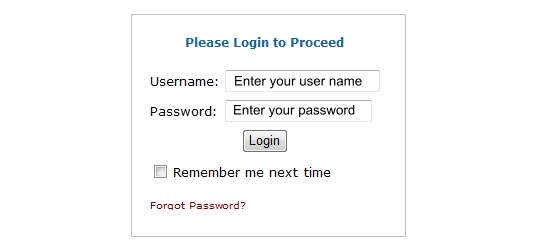
To log-in to the e-Application, enter your User Name in the Username field and enter your Password in the Password field. Then, click the Login button. If the User Name and Password you entered is valid, the e-Application will assign to you an Application Code. Together, the User Name, Password and Application code identify you as the authorized applicant. This security procedure was designed to protect your identity and personal health information (PHI) in accordance with the Health Insurance Privacy and Portability Act of 1996 (HIPAA). If you have any reason to believe that your User Name and/or Password have been compromised, reset your password immediately and contact your Southwest Service Life agent to report the problem. Instructions for resetting your password are discussed later in this document.
Remember me next time
For your convenience, the included "Remember me next time" checkbox has been provided on the Log-in page. Checking the box places a cookie on your local computer that allows you to skip the Log-in page during subsequent e-Application sessions initiated from the computer where the cookie is saved. Be sure that your computer is secure before checking this box. Under no circumstances should you check the Remember me... box if anyone else has access to the computer you are using or if you are using a public computer. Checking the Remember me... box on one computer does not affect log-ins from any other computer.
Forgot Password?
Should you forget your password, you can obtain a new, temporary password by clicking the "Forgot Password?" link. When you click the link, a form will be displayed that allows you to enter the email address provided by your SWSL agent during account setup. If you request a new, temporary password and do not receive it within ten minutes of your request, check your Junk Email or Spam folder. If the email is not in one of these folders, contact your SWSL agent for a replacement. Upon receipt of a replacement password, you should log-in to the e-Application Website and change the password immediately to one that is only known by you.
Changing Your Password
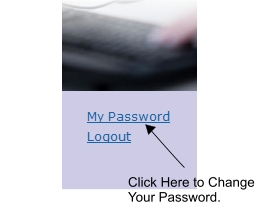
You can change your password at any time by clicking the "My Password" link located in the left margin of each page, just below the keyboard graphic (see the example below). When you click the My Password link, a form will be displayed that asks you to enter your new password twice and enter the email address of your e-Application account. When you have entered your information, click the Submit button. The e-Application will verify that the email address you entered is correct. If any errors are found, the e-Application will display an explanation of the error and allow you to correct it. When the information you have entered has been verified, the Success page will appear with a link to the e-Application.
System Requirements
The e-Application Website works with most computers and operating systems. In the unlikely event that you encounter problems when using the e-Application, please check your Web browser settings; for the e-Application to function properly your Web browser should meet the following minimum requirements:
Internet Explorer 6.0 or greater
Mozilla FireFox 2.0 or greater
Javascript Enabled
Cookies Enabled (optional)
If you are using one of the Web browsers listed above and you are unable to use the e-Application Website, please refer to the User's Guide supplied with your computer or operating system for instructions regarding updating your Web browser and the use of Javascript.
If you do not want to enable Javascript on your computer, please contact your agent. He or she will provide you with a standard paper Application form.